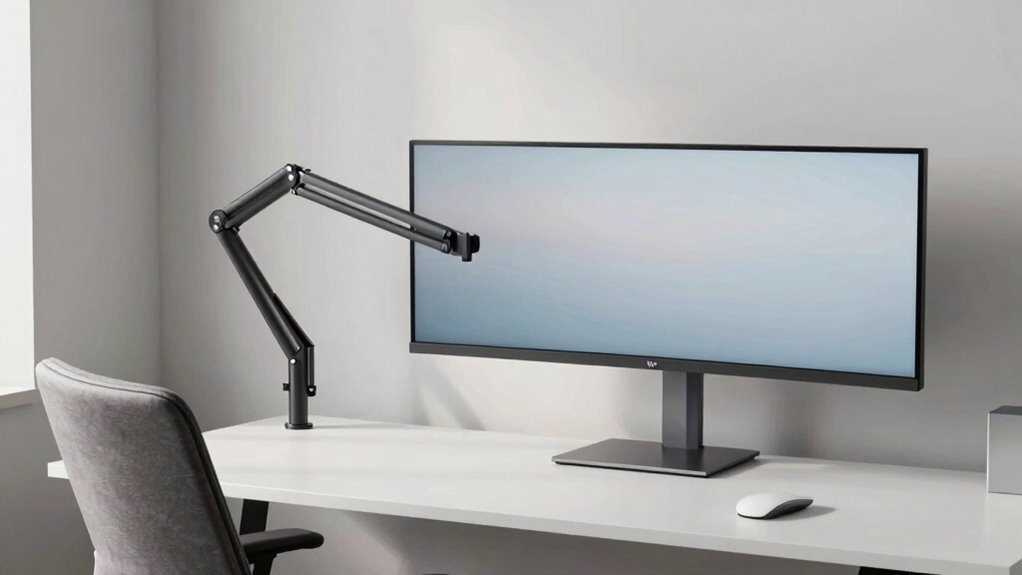

To ease neck strain, choose a monitor mount that allows flexible positioning, like an adjustable arm or wall mount. Set the top of your screen at or just below eye level, keeping your neck relaxed and your head centered. Keep the monitor about an arm’s length away, and avoid tilting your head up or down. Proper placement and ergonomic accessories can make a big difference—continue exploring to find the perfect setup for your comfort.

Get the little things that make your day delivered free — and shop member deals
- Fast, free delivery on millions of items
- Access to Prime Big Deal Days deals on October 6–7
- Prime Video, Amazon Music and more included
Key Takeaways
- Choose an adjustable monitor mount or arm to easily align the screen at eye level.
- Position the top of the monitor just below eye level to prevent neck strain.
- Keep the monitor about an arm’s length away for comfortable viewing without tilting the neck.
- Use ergonomic accessories to enable pivoting, rotating, and height adjustments for flexibility.
- Ensure proper lighting and glare management to reduce the need for awkward head movements.
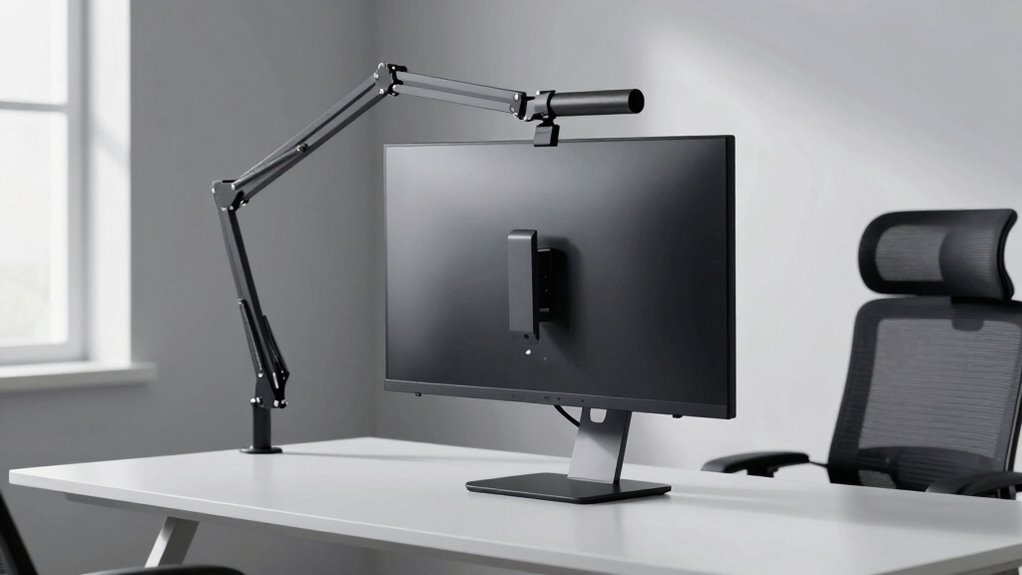
Have you ever wondered how to properly mount a monitor for ideal comfort and workspace efficiency? The key lies in understanding the importance of ergonomic accessories and proper monitor placement. When you position your monitor correctly, you reduce strain on your neck and shoulders, making long hours at your desk much more comfortable. Start by choosing the right mounting option—whether it’s a wall mount, monitor arm, or adjustable stand—that suits your workspace and allows for flexible positioning. These ergonomic accessories give you the freedom to adjust your monitor’s height, tilt, and distance, ensuring your screen aligns perfectly with your eye level. This way, you avoid craning your neck or leaning forward, which can lead to discomfort and even long-term musculoskeletal issues. Proper monitor calibration is also crucial for reducing eye strain and ensuring color accuracy during detailed work. Once you’ve selected the right mount, it’s essential to calibrate your monitor properly. monitor calibration involves adjusting brightness, contrast, and color settings to match your environment and reduce eye strain. When your display is calibrated correctly, you see clear and sharp images without squinting or leaning closer. Proper calibration also helps you work more accurately, especially if your tasks involve color-sensitive work like photo editing or design. After calibration, position your monitor so that the top of the screen is roughly at or just below eye level. Keep about an arm’s length distance between your eyes and the screen. This setup minimizes the need to tilt your head up or down, which can cause neck fatigue. Adjusting your monitor’s position with ergonomic accessories allows you to switch between sitting and standing, keeping your posture dynamic and reducing stiffness. Many monitor arms enable you to easily pivot, rotate, or extend the screen, giving you control over your workspace setup. Remember, the goal is to keep your neck relaxed and your head centered over your shoulders. The right placement also means avoiding glare from windows or overhead lights, which can cause you to adopt awkward positions to see the screen clearly. To further improve comfort, consider proper lighting in your workspace, which can significantly reduce eye strain and enhance your overall ergonomic setup. Incorporating ergonomic principles into your workspace layout can help prevent discomfort and improve your productivity over time. Proper placement of your monitor in relation to your viewing distance is essential for reducing eye strain and ensuring visual comfort during extended work sessions. Positioning your monitor perpendicular to windows and using adjustable window coverings if necessary can help minimize glare and reflections.
As an affiliate, we earn on qualifying purchases.
Frequently Asked Questions
What Tools Are Needed for Monitor Mounting?
To mount your monitor, you’ll need a screwdriver, a level, and possibly a drill. Make certain your monitor is VESA compatible, which makes mounting easier. Check the VESA mounting holes and select an appropriate mount that allows you to set the best mounting height for comfort. Some mounts may require anchors or screws; having these tools on hand speeds up the process. Proper tools make setup smooth and help prevent damage.
Can I Mount Monitors on Drywall?
Yes, you can mount monitors on drywall, but you’ll need the right hardware. Use drywall anchors designed for heavier loads to guarantee stability. Proper monitor placement is essential for comfort and ergonomics, so position your monitors at eye level and secure them firmly. Avoid relying solely on screws into drywall; anchors distribute weight better, preventing damage and ensuring your monitors stay safely mounted without risking injury or damage.
How Do I Hide Monitor Cables?
To hide monitor cables, start with cable management solutions like cable clips or sleeves to keep wires organized. Use adhesive cable clips along your desk or wall to route hidden wiring neatly out of sight. Consider installing a cable raceway or conduit underneath your desk to conceal everything completely. This not only creates a clean look but also prevents tangling, making your workspace safer and more aesthetically pleasing.
Are There Weight Limits for Wall Mounts?
Yes, wall mounts have weight limits, which are essential to take into account. Always check the specified weight capacity before mounting your monitor, as exceeding it can cause damage or accidents. Be mindful of mounting restrictions, such as wall type and mounting hardware compatibility, to guarantee safety. If your monitor is heavy, choose a mount rated for its weight, and follow installation instructions carefully to prevent any issues.
How Do I Adjust Monitor Tilt After Mounting?
Adjusting your monitor tilt is as easy as flipping a switch. After mounting, locate the tilt adjustment knob or lever—often on the back or bottom of your monitor. Loosen it slightly, then tilt the screen to your ideal ergonomic posture. Tighten the knob or lever to lock in your preferred monitor height and tilt. This guarantees comfortable viewing, reducing neck strain and promoting better overall posture during long work hours.
As an affiliate, we earn on qualifying purchases.
Conclusion
By mounting your monitors correctly, you’re not just freeing up space—you’re giving your neck a well-deserved break. Think of your setup as a well-orchestrated symphony, where each element harmonizes to keep you comfortable and focused. So, take control of your workspace today, and let proper monitor placement become your secret weapon against strain. Because in the end, isn’t it time your neck got the rest it deserves? Your future self will thank you.
As an affiliate, we earn on qualifying purchases.
As an affiliate, we earn on qualifying purchases.
NFL season / tailgating Picks
team gear
As an affiliate, we earn on qualifying purchases.