
QoS, or Quality of Service, is a setting on your router that prioritizes bandwidth for critical activities like video calls. It helps reduce lag, buffering, and poor connection issues by allocating more data to applications such as video conferencing. Properly configuring QoS guarantees your video calls stay smooth even with multiple devices using the internet. To learn how to set up and optimize QoS for the best call quality, keep exploring this topic further.
Key Takeaways
- QoS prioritizes video call data over other network traffic to prevent lag and buffering.
- Proper QoS setup involves configuring bandwidth allocation and device prioritization on your router.
- QoS reduces network congestion by managing traffic, ensuring smoother and clearer video calls.
- Monitoring QoS effectiveness helps maintain optimal video quality during peak usage times.
- Combining QoS with troubleshooting steps like reducing interference improves overall video call performance.
Why Is My Video Call Lagging? Common Causes of Poor Connection

If your video call keeps lagging, multiple factors could be causing the issue. One common cause is insufficient bandwidth management, which limits the data your network can handle simultaneously. When your connection doesn’t allocate enough bandwidth for video calls, it results in buffering and delays. Signal interference is another culprit; devices like microwaves, cordless phones, or nearby Wi-Fi networks can disrupt your signal, causing instability. These interferences weaken your connection’s reliability, leading to poor video quality. To improve your call, ensure your network has enough bandwidth and minimize interference sources. Using a wired connection or moving closer to your Wi-Fi router can also help. Addressing these issues helps create a more stable environment for seamless video communication. Understanding network prioritization can help optimize your connection for video calls. Additionally, managing your device’s network traffic with QoS settings can further reduce lag. Implementing network security measures can prevent unauthorized usage that may drain bandwidth and cause lag. Regularly checking your network’s capacity and monitoring bandwidth usage can also help you identify and resolve potential issues before they impact your calls. Being aware of network congestion during peak hours can also assist in troubleshooting and planning your calls for better performance.
What Is QoS and How Does It Help Improve Video Calls?
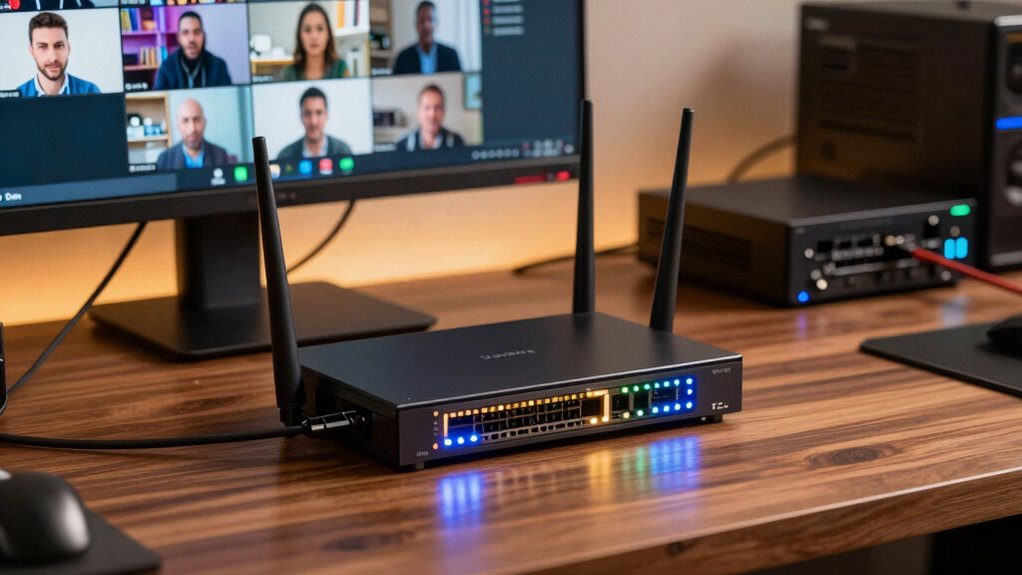
Quality of Service (QoS) helps your network prioritize important data like video calls over less critical traffic. This reduces congestion and prevents your connection from slowing down during important moments. As a result, your video streams stay smooth and clear, even when your network is busy. Implementing adaptive routing can further enhance your connection by dynamically selecting the best path for your data. Additionally, understanding network management techniques can optimize your overall internet performance. Proper configuration of network bandwidth allocation ensures that critical applications receive the necessary resources for optimal performance. Recognizing the role of drone bees in maintaining hive stability highlights the importance of healthy systems to support thriving environments. Effective traffic shaping techniques can also help maintain consistent performance during peak usage times.
Prioritizes Critical Traffic
Prioritizing critical traffic is crucial for ensuring smooth video calls, especially when multiple data streams compete for bandwidth. With effective bandwidth management, QoS identifies and allocates resources to important data, like your video and audio streams, over less urgent traffic. Traffic prioritization guarantees these vital packets receive precedence, reducing delays and buffering. By assigning higher priority levels to your video call data, QoS prevents disruptions caused by other network activities, such as downloads or email syncing. This targeted approach helps maintain a steady connection, even during peak usage times. Electric dirt bikes and other devices can generate significant network traffic, making QoS essential for managing bandwidth effectively. Additionally, implementing network traffic management strategies can further optimize your connection. For example, understanding the impact of microplastics in dust on indoor air quality highlights the importance of managing environmental factors that can indirectly affect network equipment and performance. Properly configuring Quality of Service settings ensures that your critical data remains prioritized, especially in congested networks. This is especially true when considering the hardware capabilities of your network devices, which play a key role in supporting QoS functions. Overall, prioritizing critical traffic through QoS ensures your video calls stay clear, lag-free, and reliable, providing a seamless communication experience regardless of the network’s overall load.
Reduces Network Congestion
When critical traffic is properly prioritized, it helps prevent network congestion by managing how bandwidth is allotted among multiple data streams. This ensures that high-priority data, like video calls, get the resources they need without delay. By optimizing network efficiency through data prioritization, QoS reduces the chances of lag and buffering. Additionally, understanding the role of network traffic management can further improve your connection stability. Here are four ways QoS achieves this: 1. Limits bandwidth for less important activities like downloads. 2. Allocates more bandwidth to real-time applications. 3. Manages traffic spikes to avoid overloads. 4. Ensures consistent data flow for essential services. Incorporating network performance optimization techniques can enhance your overall network reliability. Proper bandwidth allocation is key to minimizing congestion and maintaining a stable, high-quality connection, so your video calls stay clear and uninterrupted. For example, prioritizing real-time data helps ensure your video calls are smooth even during peak usage times. Furthermore, implementing quality of service policies tailored to your specific usage patterns can provide an additional layer of control and efficiency.
Ensures Smooth Video Streams
To guarantee your video calls stay smooth and free of interruptions, QoS plays a vital role by prioritizing real-time data traffic. Through effective bandwidth management, QoS allocates sufficient resources for your video streams, preventing them from being slowed down by other network activities. Network prioritization ensures that your video data gets immediate attention over less critical traffic, reducing lag and buffering. By setting these priorities, QoS maintains consistent video quality, even during heavy network usage. This targeted approach minimizes delays and jitter, allowing your calls to remain clear and stable. Overall, QoS’s focus on bandwidth management and network prioritization keeps your video streams smooth, making your communication seamless and frustration-free.
How to Set Up QoS on Your Router in Easy Steps
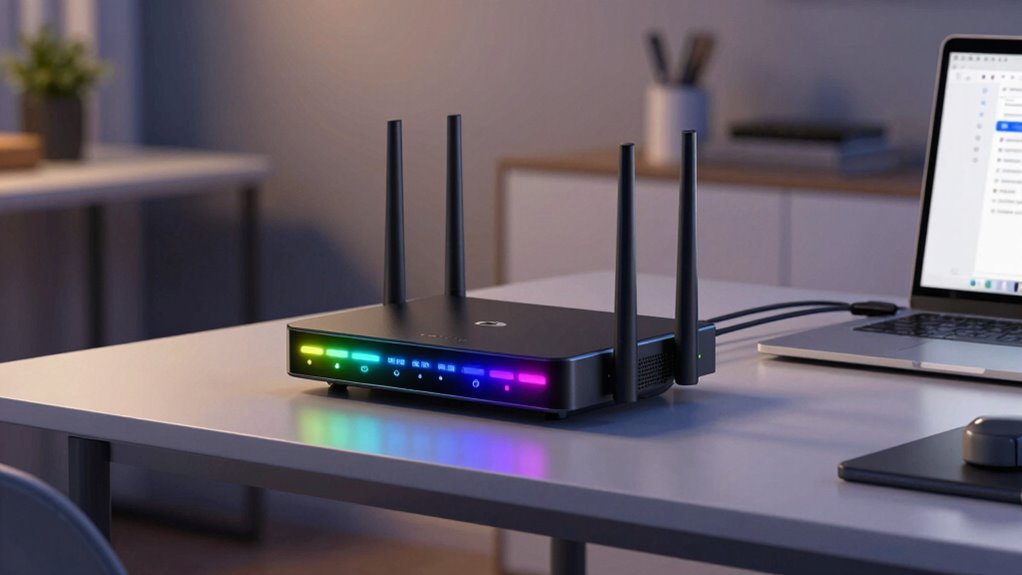
Setting up QoS on your router might seem complicated, but with a few simple steps, you can optimize your network for better performance. First, access your router’s admin panel through your browser. Next, locate the QoS or Traffic Management settings. Then, prioritize your device’s internet speed for important applications like video calls. Additionally, ensure you have the essential DIY tools ready, such as a screwdriver or an Ethernet tester, in case you need to make physical adjustments or troubleshoot connectivity issues. Finally, save your settings and restart the router if needed. To ensure your network remains safe and reliable, consider configuring power protection measures to prevent outages during power fluctuations. Here are the key steps: 1. Log into your router’s setup page. 2. Find the QoS or Traffic Management section. 3. Assign priority to essential devices or applications. 4. Save changes and reboot your router.
Debunking Myths About QoS and Improving Video Call Quality
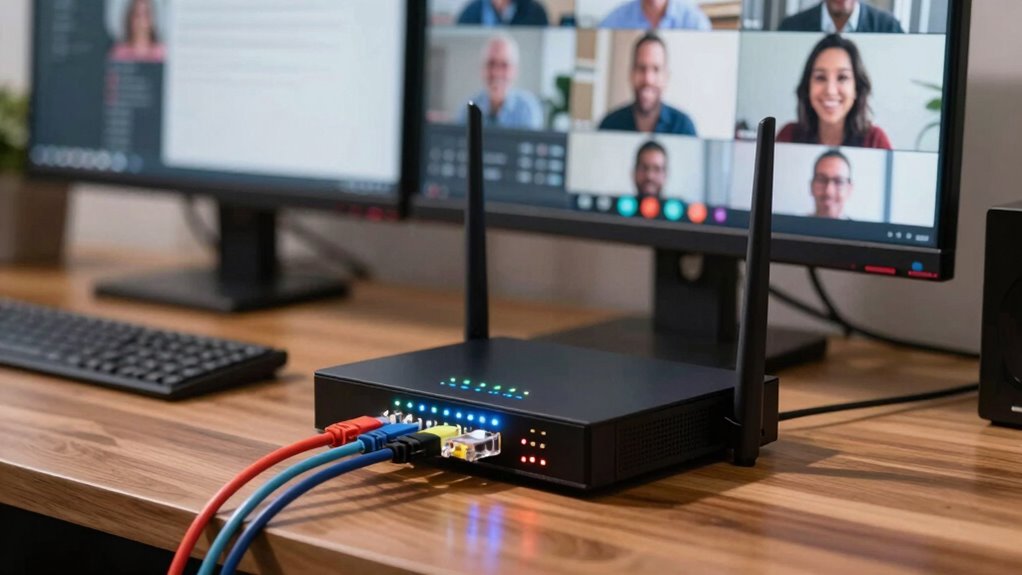
Many people assume that simply enabling QoS guarantees perfect video call quality, but this isn’t always true. QoS is a helpful tool, yet it’s not a magic fix for all issues. Overestimating its capabilities can lead to neglecting other factors like network security and overall bandwidth allocation. Properly configured QoS prioritizes video traffic, but if your network is insecure or overloaded, lag can still occur. It’s essential to understand that QoS works best when combined with secure networks and sufficient bandwidth. Consider this table:
| Aspect | Misconception | Reality |
|---|---|---|
| Network Security | QoS improves security | QoS prioritizes traffic, not security measures |
| Bandwidth Allocation | More bandwidth solves lag | Adequate bandwidth is necessary, but not alone enough |
| Quality Guarantee | QoS guarantees perfect calls | It reduces lag but can’t eliminate all issues |
Troubleshooting Video Call Lag Despite QoS Setup

Even with QoS properly configured, video call lag can still occur, leaving you frustrated. Network interference from nearby devices or signals can disrupt your connection, rendering QoS less effective. Additionally, outdated hardware might struggle to handle high data loads, causing lag despite settings. To troubleshoot:
- Check for network interference and reduce competing devices.
- Restart your router to clear potential congestion.
- Update your network adapter and router firmware.
- Consider hardware upgrades if your device or router is outdated.
- Recognize network congestion as a common cause of persistent lag and plan your usage accordingly.
Sometimes, even the best QoS setup isn’t enough if your network faces persistent interference or your hardware can’t keep up. Addressing these issues can dramatically improve your video call experience and eliminate lag.
Best Practices for Optimizing QoS for Multiple Devices and Streaming

To optimize QoS effectively for multiple devices and streaming, you need to prioritize bandwidth based on your usage patterns. Start with proper bandwidth management by allocating more bandwidth to essential devices like work computers or streaming devices, ensuring they perform smoothly. Use device prioritization to assign higher priority to your video call devices, preventing lag during important meetings. Regularly review and adjust these priorities as your usage changes, especially during peak times. Limit background activities and bandwidth-heavy applications on less critical devices to free up resources. Implementing Quality of Service policies on your router helps automate this process, ensuring your network distributes bandwidth efficiently. By managing bandwidth and prioritizing devices carefully, you can enjoy seamless streaming and reliable video calls across all your devices.
How to Confirm QoS Is Working and Enhancing Your Calls

Once you’ve set up your QoS settings to prioritize your devices and applications, it’s important to verify that everything is functioning correctly. To confirm QoS is working and improving your calls, monitor key indicators like network latency and bandwidth allocation during a video call. Here are some ways to check:
- Use your router’s QoS monitoring tools to see real-time bandwidth distribution.
- Run a speed test before and during calls to observe changes in network latency.
- Observe if your video calls remain smooth and free of lag, especially when other devices are active.
- Check for reduced buffering or interruptions, indicating effective bandwidth prioritization.
These steps help ensure QoS is effectively reducing network latency and optimizing bandwidth for clear, lag-free communication.
Other Tips to Prevent Video Call Lag Beyond QoS

While optimizing your network with QoS is essential, there are additional steps you can take to prevent video call lag. Making sure strong network security helps protect your connection from interference or malicious activity that can cause disruptions. Keep your router firmware updated and use secure passwords to maintain a stable and reliable connection. Additionally, check device compatibility; older devices or outdated software may struggle with high-quality video calls. Using devices recommended by your video conferencing platform ensures better performance. Limit background apps and downloads during calls, as they consume bandwidth and slow your connection. By maintaining robust network security and ensuring device compatibility, you reduce potential causes of lag beyond QoS, resulting in smoother, more reliable video calls.
Frequently Asked Questions
Can Qos Resolve All Types of Internet Lag Issues?
No, QoS can’t resolve all internet lag issues. While it helps manage network congestion and prioritizes bandwidth allocation for critical tasks like video calls, it doesn’t fix problems caused by slow internet speeds or hardware issues. If your connection experiences frequent drops or slowdowns unrelated to congestion, you might need to upgrade your plan or troubleshoot your equipment. QoS is a helpful tool, but it’s not a cure-all.
Is Qos Setup Different for Wired and Wireless Connections?
Think of setting up QoS as tuning a musical instrument—you’ll need different strings for wired and wireless connections. Wired setups are straightforward, like plucking a single string with precision. Wireless setups are trickier, akin to balancing multiple strings in harmony, making the setup more complex. While the core principles stay the same, the configuration process varies, requiring you to adapt to each connection type for ideal performance.
How Often Should I Review My Qos Settings?
You should review your QoS settings every few months or when you notice network congestion affecting your activities. Regular checks help guarantee bandwidth allocation prioritizes critical tasks like video calls and streaming. If you experience lag or slowdowns, revisit your QoS configurations to adjust priorities and optimize performance. Keeping your settings up-to-date ensures your network efficiently manages bandwidth, preventing congestion and maintaining smooth, uninterrupted connections.
Does Qos Prioritize Specific Devices Automatically?
Imagine your network as a busy highway; your router’s QoS can act like traffic cops, prioritizing specific devices automatically. Yes, it does device prioritization through automatic management, ensuring your most important devices get the bandwidth they need. This way, your video calls stay smooth, even when other gadgets are streaming or downloading. You don’t have to manually set priorities—it happens seamlessly to keep your connection optimized.
Are There Risks or Downsides to Using Qos?
Using QoS can improve your network performance, but there are risks like affecting network security if misconfigured. It might also cause device compatibility issues, especially with older equipment that doesn’t support advanced QoS features. You should carefully set priorities to avoid disrupting other devices or services. Regularly review your settings to make sure your network remains secure and all devices work smoothly without unintended consequences.
Conclusion
By setting up QoS correctly, you can substantially reduce video call lag and enjoy smoother conversations. While some believe QoS alone guarantees perfect quality, it’s important to combine it with good internet habits and device management. Test your setup to make sure it’s working, and don’t forget to keep your router firmware updated. With these steps, you’ll experience clearer, more reliable calls—and finally, prove that a well-configured QoS really makes a difference.