
Choosing between ultrawide and dual monitors hinges on your workflow and workspace. Ultrawides offer a seamless, immersive view that boosts multitasking and focus, but they can cause eye strain if not set up properly. Dual monitors provide flexibility, dedicated spaces for tasks, and easier calibration, yet they take up more room and can complicate setup. For a balanced view on this productivity trade-off, keep exploring how each setup fits your needs.
Key Takeaways
- Ultrawide monitors offer seamless multitasking with a continuous workspace but can cause increased eye strain if ergonomics are neglected.
- Dual monitors provide flexible workspace organization and redundancy but may require more desk space and setup effort.
- Ultrawides reduce window switching, boosting focus, while dual monitors excel in isolating tasks and minimizing distractions.
- Cost, space efficiency, and color calibration challenges differ between ultrawides and dual setups, impacting productivity and workflow quality.
- Proper ergonomic adjustments and calibration are critical for both setups to maximize productivity and prevent fatigue.
What Are Ultrawide Monitors and Dual Monitors?
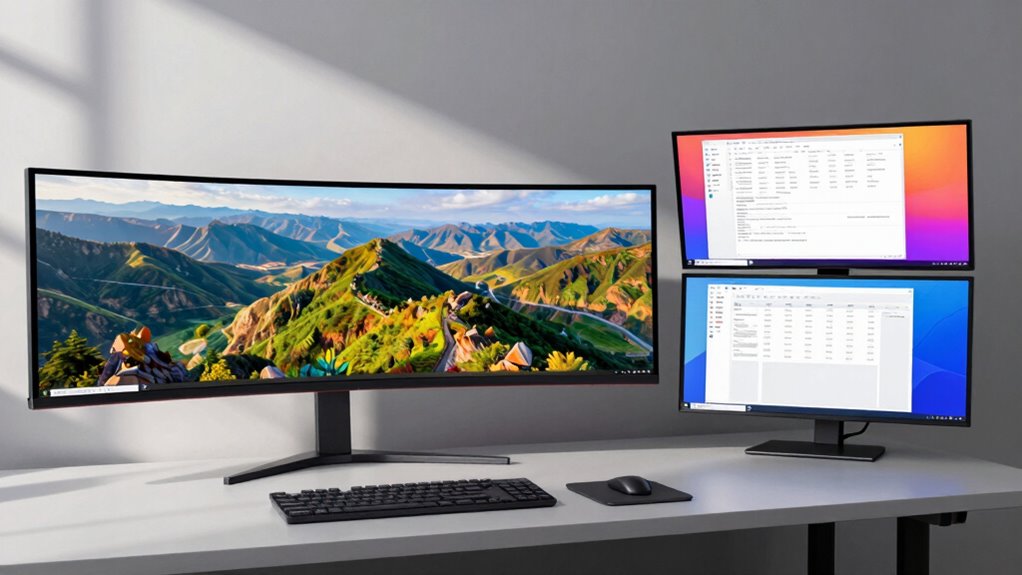
Ultrawide monitors and dual monitors are popular setups that enhance your workspace, but they serve different purposes. Ultrawide monitors feature a single, expansive screen with high resolution options like 3440×1440 or 5120×1440, creating a seamless viewing experience. They’re ideal for immersive tasks like video editing or gaming, with minimal bezel distractions. Dual monitor setups consist of two separate screens, often with thinner bezels, allowing you to customize sizes and resolutions for each. Bezel considerations are essential here, as thicker bezels can interrupt your workflow, while thinner ones provide a more continuous workspace. Both setups improve productivity, but understanding resolution options and bezel impacts helps you choose the right configuration for your needs. Additionally, digital concepts such as screen real estate and workspace organization play a crucial role in optimizing your setup.
How Do Ultrawide Monitors Impact Multitasking and Workflow?
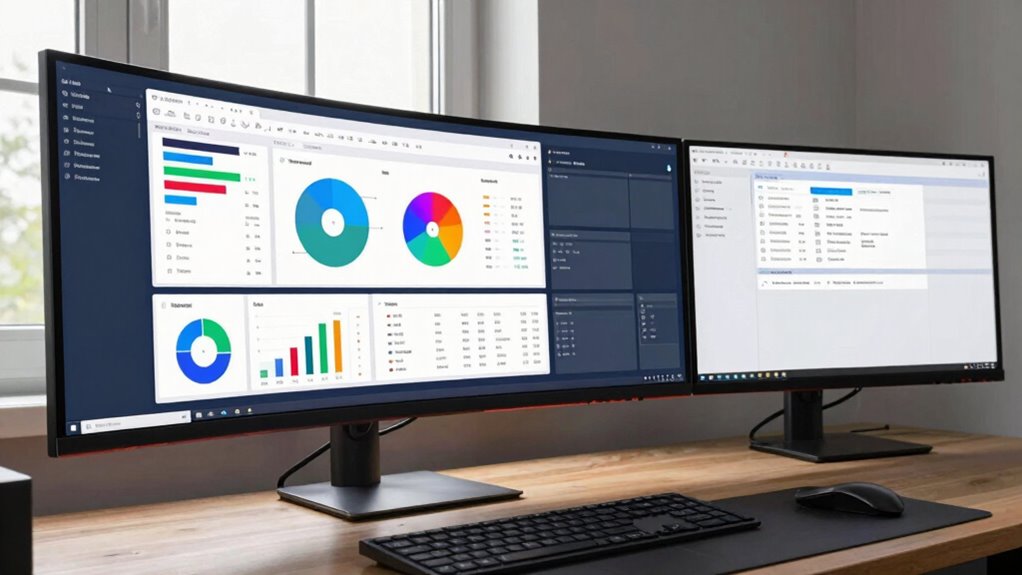
Ultrawide monitors let you see multiple applications at once, making multitasking smoother. However, managing windows across the wide screen can be tricky and sometimes distracting. This setup can improve your workflow but may also lead to focus shifts if you’re not careful.
Seamless Multi-Application View
Because of their expansive screens, ultrawide monitors enable you to view multiple applications side by side without constantly switching between windows. This seamless multi-application view enhances your multi application workflows, allowing for more efficient multitasking. With better workspace integration, you can monitor emails, spreadsheets, and communication tools simultaneously, reducing interruptions. The uninterrupted display encourages a more natural flow of ideas and tasks, increasing productivity. You won’t need to juggle between tabs or resize windows constantly, saving time and mental energy. Ultrawide monitors help you create a cohesive workspace where all relevant information is accessible at once. This setup is especially beneficial for complex projects that require continuous reference to multiple sources, streamlining your workflow and keeping you focused.
Window Management Challenges
While ultrawide monitors offer extensive screen space for multitasking, they can also introduce some management challenges. The larger real estate demands more careful window arrangement to avoid clutter and maximize productivity. Without proper organization, you might find yourself constantly resizing or repositioning windows, which hampers workflow. The wide format can make it tricky to establish a productivity balance, especially if you’re used to multiple monitors with dedicated screens. You may struggle to find an ideal layout that keeps everything accessible without overwhelming your view. This can lead to occasional frustration and decreased efficiency. To maintain smooth workflow, you’ll need to develop effective window management habits, ensuring your ultrawide monitor enhances rather than hinders your multitasking capabilities.
Distraction and Focus Shifts
Although ultrawide monitors provide ample space for multitasking, they can also increase the risk of distractions and focus shifts. With a broader screen, you might find yourself constantly glancing at different sections, which can hinder your multitasking efficiency. The expansive view makes it easy to have multiple applications open simultaneously, but this can lead to information overload and reduce your ability to concentrate on one task. Over time, this constant switching can cause focus fatigue, leaving you feeling drained and less productive. Instead of streamlining your workflow, an ultrawide monitor might make it harder to maintain deep focus, especially if you struggle with managing visual clutter. Recognizing these potential distraction points helps you decide if an ultrawide monitor suits your multitasking style.
Are Ultrawide Monitors Better for Focus and Creativity?
Ultrawide monitors can considerably enhance your focus and boost creativity by providing a seamless, expansive workspace. Their wide screens promote visual harmony, allowing you to see multiple applications or creative tools at once without toggling between tabs. This continuous view helps you stay immersed in your tasks, reducing distractions caused by window switching. Additionally, their ergonomic design offers a more natural line of sight, minimizing neck and eye strain during long work sessions. The immersive display encourages a flow state, making it easier to generate ideas and solve complex problems. Furthermore, car protection products can be integrated into your workspace setup to safeguard your devices from accidental damage, ensuring your investment is well protected. Considering the importance of ergonomic benefits, ultrawide monitors can also help prevent long-term discomfort. Proper monitor placement can further enhance comfort and productivity over extended periods. When choosing an ultrawide monitor, paying attention to resolution and color accuracy can significantly improve your creative output. Overall, ultrawide monitors create an environment that nurtures concentration and fosters creativity, especially when their design aligns with your workflow and ergonomic needs.
Eye Strain Risks of Ultrawide Monitors You Should Know?
The expansive view offered by ultrawide monitors can boost your focus and creativity, but it also comes with potential drawbacks for your eye health. Extended screen real estate may cause eye strain if ergonomic considerations aren’t addressed, leading to discomfort during long sessions. You might find yourself constantly adjusting your position or squinting, which increases fatigue. Additionally, ultrawide screens can sometimes struggle with color accuracy, making it harder to detect subtle differences and causing your eyes to work harder. Poor contrast or inconsistent brightness across the display can also contribute to eye fatigue. To minimize these risks, ensure your monitor is positioned at eye level, with proper lighting, and calibrated for color accuracy. Taking regular breaks is essential to protect your eyes from strain over time. Proper ergonomic setup can significantly reduce eye discomfort and improve your overall viewing experience, especially when considering the long-term health of your vision. Utilizing screen brightness adjustments can also help reduce eye strain during prolonged use.
How Dual Monitors Boost Flexibility and Redundancy?
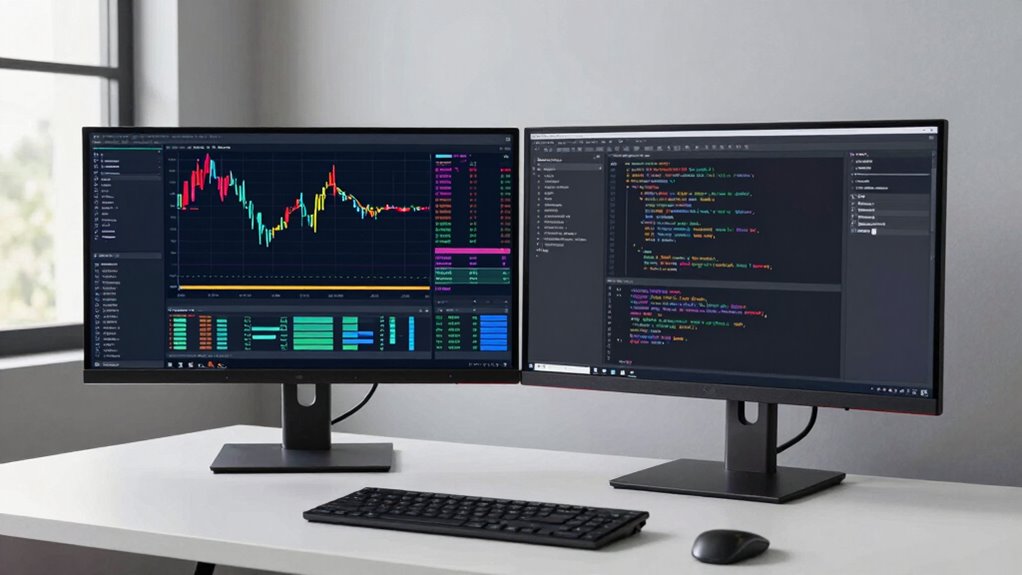
Dual monitors substantially enhance your workspace flexibility by allowing you to organize multiple applications and tasks simultaneously. This setup offers increased redundancy, so if one application crashes, your workflow isn’t disrupted. To maximize benefits, consider:
Dual monitors boost productivity by enabling seamless multitasking and reducing workflow interruptions.
- Ensuring hardware compatibility with your graphics card and ports to support multiple displays smoothly.
- Adjusting ergonomic considerations by positioning monitors at eye level and at appropriate angles for comfort.
- Using dedicated workspaces for specific tasks, which helps streamline your productivity and reduces clutter.
- Paying attention to refresh rates, which can improve the smoothness and responsiveness of your displays during fast-paced activities. Additionally, understanding your dual monitor setup can help optimize overall performance and reduce technical issues. Recognizing hardware limitations is also crucial to prevent potential bottlenecks and ensure a seamless experience.
This flexibility allows you to switch between tasks effortlessly, improves multitasking efficiency, and provides a backup if one monitor encounters issues. Proper setup, considering hardware compatibility and ergonomic factors, makes dual monitors a reliable and adaptable tool for your workspace.
Cost and Space Benefits of Ultrawide vs Dual Monitors?
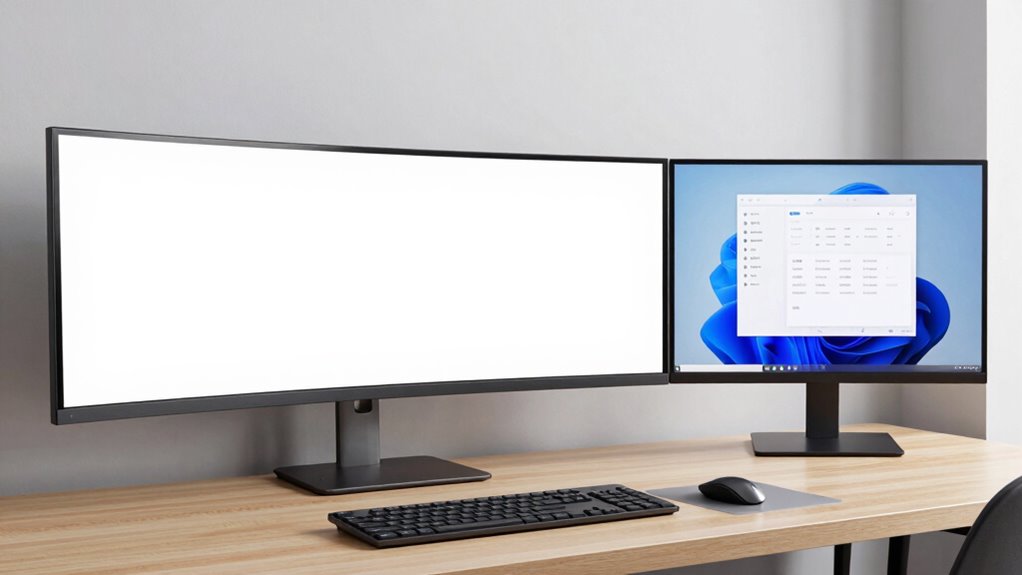
When comparing ultrawide and dual monitors, you’ll find differences in setup costs and space requirements. Ultrawide monitors often have simpler installation and take up less desk space, saving you money and room. Meanwhile, dual monitors might need more investment and a larger footprint, which can impact your workspace efficiency. Additionally, considering content creation needs can influence which setup offers better value for your specific tasks. For example, ultrawide monitors can provide a more seamless viewing experience, especially beneficial for multitasking and wide workflows, whereas dual monitors offer flexibility in organizing multiple applications separately. Recognizing ergonomic benefits can also be crucial in choosing the right configuration for long-term comfort and productivity, as proper setup can reduce strain and improve workplace ergonomics. Understanding visual continuity is also essential, as it impacts how smoothly you can transition between tasks across screens.
Installation and Setup Costs
Setting up ultrawide monitors generally involves a simpler and more cost-effective process compared to configuring dual monitors. With a single screen, you avoid the need for multiple mounts or stands, reducing hardware costs and setup time. Additionally, cable management is easier since you only need to organize one set of cables, minimizing clutter and confusion. When it comes to monitor calibration, ultrawides often require fewer adjustments because they come pre-calibrated for broader color consistency across the display. Conversely, dual monitors may need individual calibration to ensure uniformity. Overall, installing an ultrawide saves you time, reduces the number of required accessories, and lowers initial costs, making it a more streamlined option for those seeking efficiency.
Footprint and Space Efficiency
Ultrawide monitors offer a considerably smaller footprint compared to dual setups, making them a smarter choice for maximizing space. With fewer cables and a streamlined design, you can achieve better ergonomic positioning without cluttering your desk. This integration enhances aesthetic appeal, creating a clean, professional look that reduces distractions. Consider the space saved:
| Benefit | Impact |
|---|---|
| Less physical footprint | More room for movement and comfort |
| Fewer cables | Reduced clutter, easier setup |
| Improved aesthetic | Sleek, unified workspace |
This compact setup not only saves space but also promotes a more organized, visually appealing environment, boosting your productivity and well-being daily. Additionally, choosing the right monitor setup can also improve workspace efficiency, ensuring your workspace remains organized and functional.
Which Monitor Setup Fits Your Workstyle and Tasks?
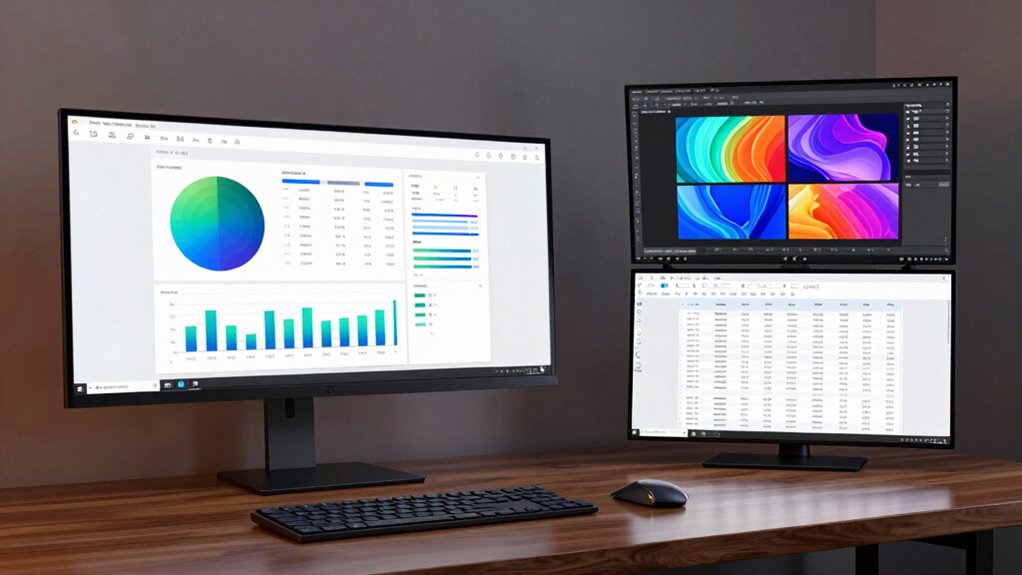
Choosing the right monitor setup depends on how you work and the tasks you prioritize. Consider these key factors:
- For multitasking or data analysis, an ultrawide monitor allows seamless window management and wide views.
- If your tasks involve detailed design work or color-sensitive projects, dual monitors with proper color calibration offer accurate, vibrant displays.
- Comfort matters—ensure your setup supports ergonomic adjustments like adjustable height, tilt, and swivel to reduce strain during long hours.
Your workstyle influences your choice: ultrawides excel for continuous workflows, while dual monitors suit tasks requiring focused, separate screens. Tailor your setup by considering ergonomic needs and display calibration to optimize productivity and comfort.
Common Setup Challenges With Ultrawide and Dual Monitors?
While selecting a monitor setup that suits your workstyle is important, implementing it without issues can present challenges. Ultrawide and dual monitors often come with setup hurdles like inconsistent color calibration, which affects visual consistency across screens. Audio integration can be tricky, especially if your speakers or headphones are only connected to one device. Additionally, aligning displays for seamless workflow requires precise positioning, and adjusting display settings may be time-consuming. Compatibility issues with graphics cards and cable management can also complicate installation. Here’s a quick overview:
| Challenge | Description | Solution |
|---|---|---|
| Color calibration | Ensuring consistent colors across screens | Use calibration tools or software |
| Audio integration | Managing audio source and output | Use external audio solutions or settings |
| Display alignment | Positioning screens for seamless flow | Adjust mounts or stands |
| Compatibility | Hardware/software conflicts | Check device specs before purchasing |
| Cable management | Keeping cables organized | Use cable clips or sleeves |
Final Tips for Choosing the Best Monitor Setup for You?
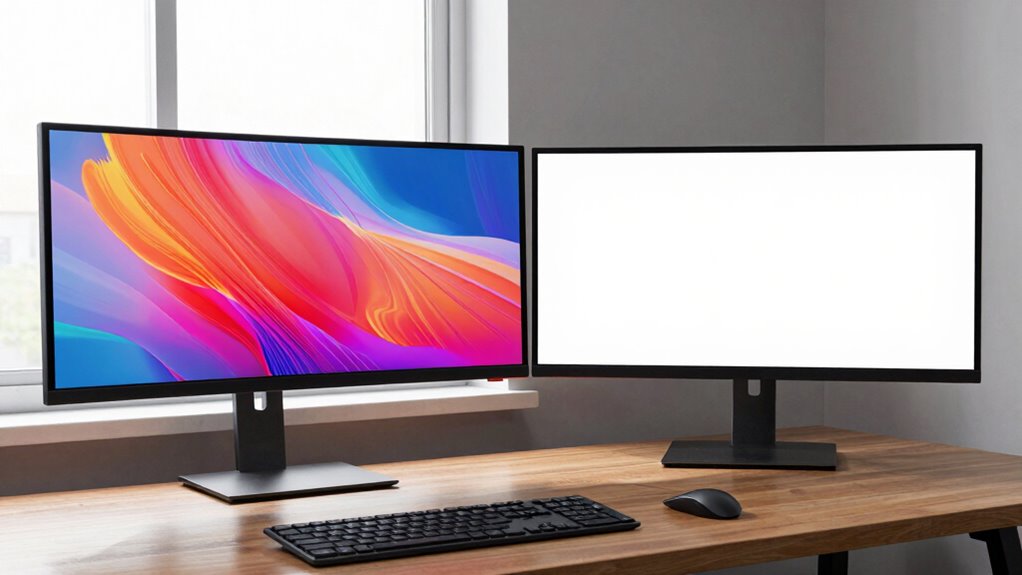
To find the ideal monitor setup, you need to take into account your specific work habits, space, and budget. First, prioritize ergonomic positioning by adjusting monitor height and tilt to reduce strain. Second, consider color calibration to ensure accurate visuals, especially if you work in design or editing. Third, evaluate your workspace to determine if an ultrawide or dual monitor setup fits best. If you often multitask, ultrawides can streamline your workflow; for focused tasks, dual monitors might be better. Also, check monitor size and resolution to match your needs. Remember, a comfortable, well-positioned setup reduces fatigue and boosts productivity. Ultimately, choose a setup that aligns with your tasks, space constraints, and ergonomic comfort.
Frequently Asked Questions
How Do Ultrawide Monitors Compare to Dual Monitors in Gaming Performance?
In gaming, ultrawide monitors often deliver a more immersive experience with wider field of view, but dual monitors can be better for multitasking. When comparing performance, ultrawide displays may have higher refresh rates, providing smoother gameplay, but they can also introduce increased input lag, which might affect responsiveness. Dual monitors typically have more consistent refresh rates and lower input lag, making them preferable for competitive gaming.
Can Ultrawide Monitors Replace Multiple Monitors for Video Editing?
Yes, ultrawide monitors can completely replace multiple monitors for video editing, transforming your workspace into a seamless panoramic studio. With their expansive screens, you’ll experience unmatched multitasking efficiency, as you can view timelines, media bins, and previews all at once without clutter. Imagine organizing your workspace with ease, eliminating the need to switch between windows constantly. Ultrawides streamline your workflow, making editing faster, more intuitive, and visually immersive.
What Are the Environmental Impacts of Ultrawide Versus Dual Monitor Setups?
Ultrawide monitors generally have a higher carbon footprint due to increased energy consumption, which can lead to more environmental impact compared to dual monitors. You might find that dual setups use less energy overall, especially if you turn off unused screens. To minimize your environmental impact, choose energy-efficient models, enable power-saving features, and consider the lifespan and recyclability of your monitors. Your choices can help reduce your overall environmental footprint.
How Do Software and Operating Systems Handle Ultrawide Screens?
Imagine your ultrawide screen as a vast canvas; software compatibility and window management tools adapt to it, but sometimes struggle. Operating systems like Windows and macOS now better support ultrawide displays, allowing you to split screens and customize layouts easily. However, some older or less common applications may not fully utilize the extra real estate, requiring manual adjustments for peak workflow. Overall, OS updates have improved handling, but compatibility remains a consideration.
Are There Ergonomic Concerns Specific to Ultrawide Monitor Use?
Yes, there are ergonomic concerns with ultrawide monitors. You might find it hard to maintain proper ergonomic posture, leading to neck strain from constantly turning your head. Additionally, extended use can cause eye strain due to the wide screen’s brightness and glare. To minimize these issues, adjust your monitor height, take regular breaks, and position it at a comfortable viewing distance to promote better eye health and posture.
Conclusion
Choosing between ultrawide and dual monitors depends on your work style, but did you know that 78% of users report increased productivity with dual setups? If flexibility, multitasking, or creative focus matter most to you, pick the setup that aligns best. Remember, the right monitor can transform your workflow—so weigh the trade-offs carefully to find what truly boosts your efficiency and comfort. Your ideal workspace is just a setup choice away.