Using a two-monitor setup for spreadsheets boosts decision-making by letting you compare data side-by-side, analyze formulas, and review reports without constant window switching. Place monitors ergonomically aligned and extend your desktop to maximize workspace. Organize your windows with snapping tools and calibrate screens for consistent visuals. This setup speeds up insights and improves accuracy. Continue exploring how to optimize your dual-monitor layout to unleash even greater efficiency.
Key Takeaways
- Use one monitor for raw data and the other for analysis, charts, or dashboards to compare information instantly.
- Arrange spreadsheets side by side to facilitate quick cross-referencing and pattern recognition during decision-making.
- Maximize workspace by displaying multiple relevant sheets or pivot tables simultaneously across monitors.
- Keep decision-critical visuals like dashboards on one screen and supporting data on the other for immediate insights.
- Utilize window snapping and consistent layout setups to streamline navigation and reduce time spent switching views.
Why Dual Monitors Boost Your Data Analysis Efficiency
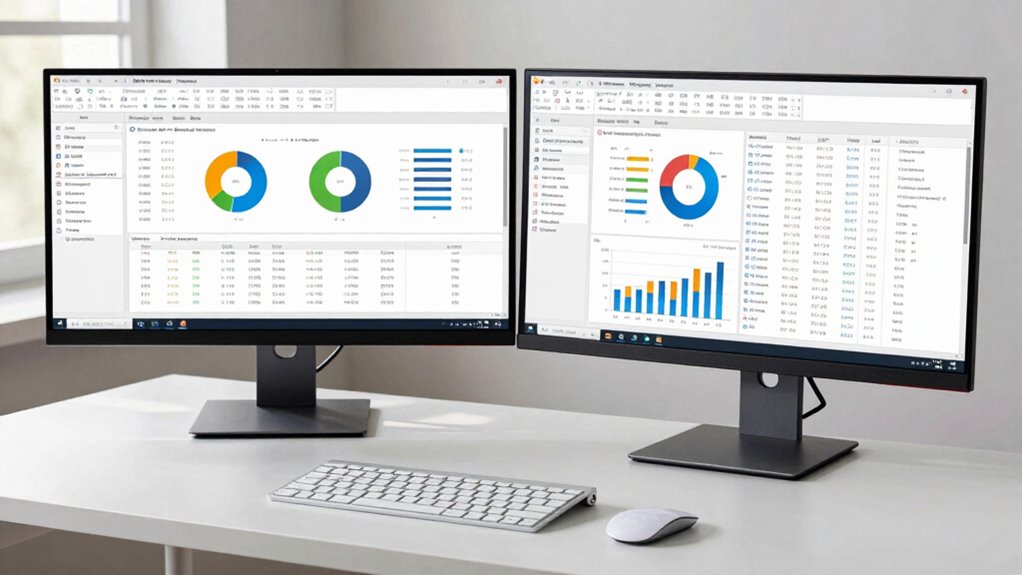
Using dual monitors markedly enhances your data analysis efficiency because you can view and compare multiple datasets or spreadsheets side by side without constantly switching windows. This setup considerably boosts your multitasking efficiency by reducing the time wasted toggling between tabs. Your visual workspace becomes more expansive, allowing you to see more information at once, which helps you spot patterns and discrepancies faster. With more screen real estate, you can work on complex formulas, charts, or pivot tables while referencing source data simultaneously. This streamlined workflow minimizes distractions and interruptions, keeping your focus sharp. As a result, your overall productivity increases, decision-making becomes faster, and errors decrease since you maintain a clearer overview of your data at all times. Additionally, having a dedicated digital workspace enables seamless integration of various content formats, further optimizing your research and analysis processes.
How to Set Up Your Dual-Monitor Spreadsheet Workspace
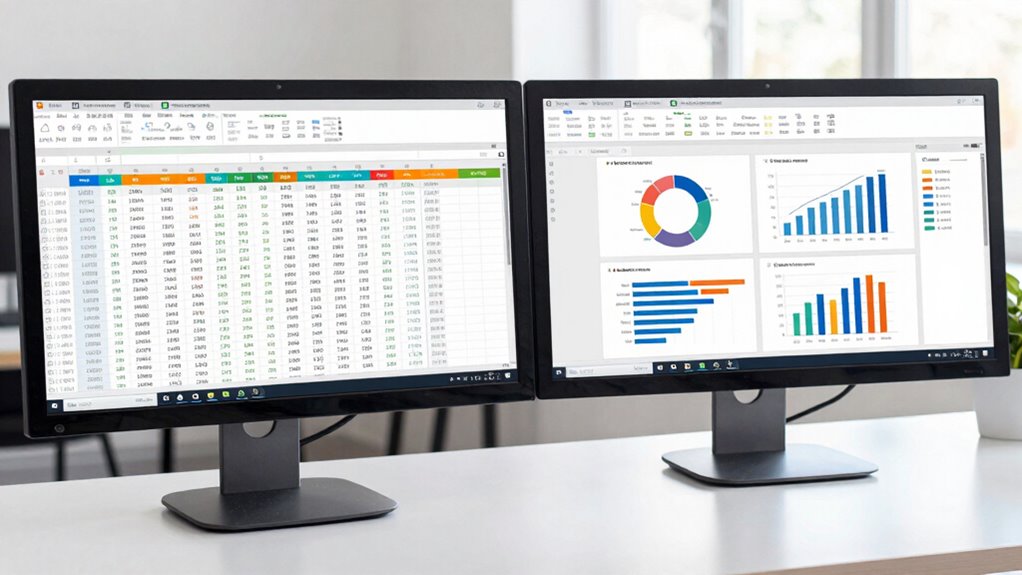
Setting up your dual-monitor workspace for spreadsheets is straightforward and can substantially improve your efficiency. Start by placing your monitors side by side, ensuring monitor placement aligns naturally with your line of sight to reduce neck strain. Position the screens at a comfortable height so your eyes are level with the top of each monitor, enhancing workspace ergonomics. Adjust the monitors to minimize glare and reflections, which can cause eye fatigue. Use the operating system’s display settings to extend your desktop across both screens, allowing seamless movement between spreadsheets. Keep essential tools and reference data on one monitor, and your working spreadsheets on the other. Proper monitor placement and ergonomic adjustments create a comfortable, efficient workspace that streamlines your data analysis process. Incorporating ergonomic accessories such as adjustable stands can further enhance your setup and reduce fatigue. Additionally, considering display calibration ensures color accuracy and clarity across both screens, which can improve your overall workflow and visual comfort. Maintaining proper visual ergonomics can also help prevent eye strain during long hours of spreadsheet work. Using monitor stands or adjustable mounts can help achieve optimal positioning and improve overall comfort during extended use. Regularly taking breaks and practicing eye exercises can also help maintain eye health and reduce fatigue during prolonged data analysis sessions.
Best Practices for Configuring and Using Two Monitors in Excel and Google Sheets
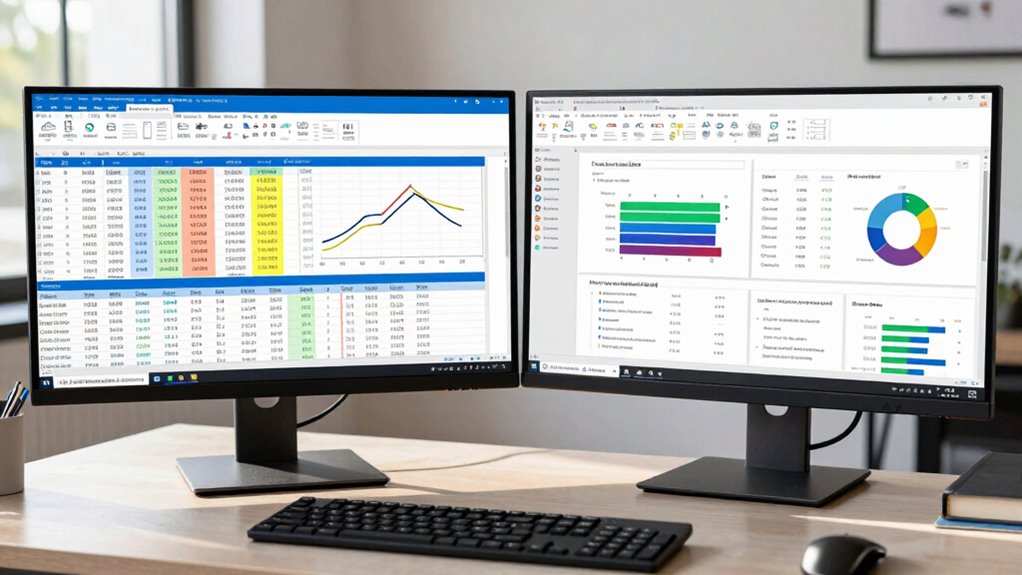
To maximize your productivity with dual monitors in Excel and Google Sheets, focus on configuring your workspace for smooth and efficient workflows. Start by calibrating your monitors to ensure consistent color and brightness, which helps reduce eye strain and maintains visual clarity. Adjust the screen resolution on both displays so they match or complement each other, preventing disruptions when moving between screens. Proper calibration and resolution alignment make it easier to view spreadsheets seamlessly across both monitors. Additionally, set your display settings to optimize workspace layout, such as enabling “extend” mode and arranging monitors for ergonomic comfort. These best practices create a unified environment, allowing you to switch effortlessly between spreadsheets and analyze data faster without visual distractions or misalignments. Incorporating free floating elements into your setup can further enhance your ability to multitask efficiently across multiple screens. Furthermore, regularly updating your display drivers ensures consistent performance and compatibility, which is crucial for maintaining a stable dual-monitor setup.
Common Challenges and How to Overcome Them
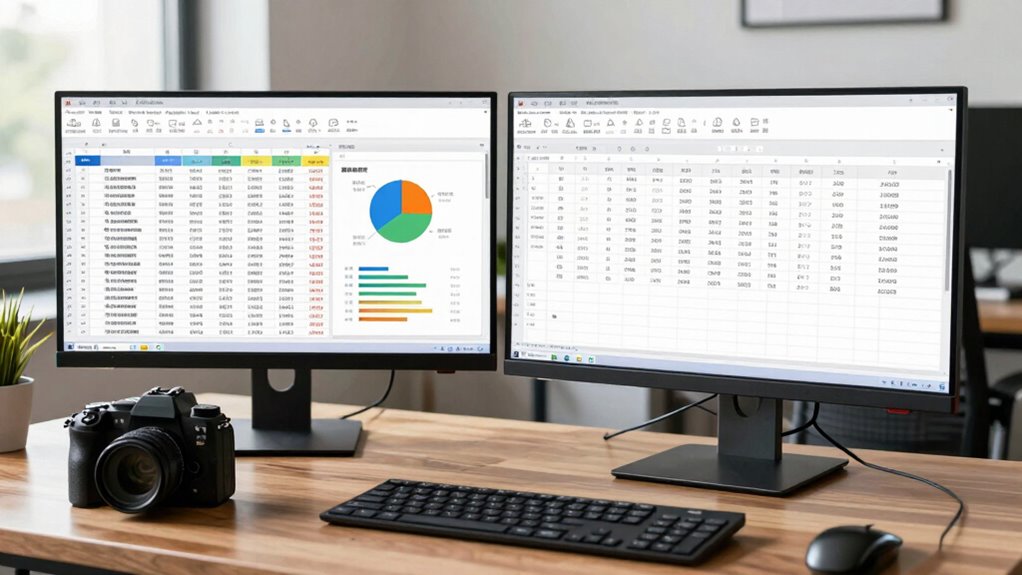
Although working with two monitors can boost your productivity, it often presents challenges like inconsistent display settings, cursor movement issues, and window management frustrations. One common problem is monitor alignment; misaligned screens can cause discomfort and slow you down. Adjusting display resolutions and physical positioning helps create a seamless workspace. Additionally, workspace distractions can arise when windows aren’t organized efficiently, leading to clutter and confusion. To overcome this, set up consistent window arrangements and use snapping tools to keep everything in place. Regularly review your monitor setup to guarantee alignment and minimize distractions. These small adjustments can markedly improve your workflow, helping you stay focused and make quicker decisions without the frustration of constant adjustments.
Real-Life Examples: Teams Using Dual Monitors to Speed Up Data Decisions

Many teams have discovered that using dual monitors considerably accelerates data analysis and decision-making. For example, finance and marketing teams often work on collaborative workflows, where real-time collaboration is essential. With two screens, they can keep their spreadsheets open side-by-side, enabling quick visual comparison of data sets, trends, and forecasts. This setup minimizes toggling between tabs or windows, saving valuable time. Sales teams, too, benefit by displaying dashboards on one monitor while updating client reports on the other. The result is faster insights and more informed decisions. Dual monitors also help teams catch discrepancies or inconsistencies immediately, streamlining the workflow. Additionally, media literacy skills enable users to better interpret and verify the information they see on multiple screens. Developing critical thinking can further enhance the ability to analyze complex data effectively. Moreover, visual information processing skills are crucial for optimizing how multiple data streams are managed simultaneously. Understanding emotional regulation can further improve team communication during data discussions, especially when analyzing stressful or complex situations. Overall, these real-life examples demonstrate how dual monitor setups boost efficiency and improve the accuracy of data-driven decisions.
Frequently Asked Questions
What Are the Optimal Monitor Sizes for Spreadsheet Work?
For spreadsheet work, aim for monitors between 24 and 27 inches, as they offer a comfortable viewing area without causing strain. Make sure proper monitor calibration for accurate colors and details, and place screens ergonomically to prevent neck and eye fatigue. Dual monitors in this size range boost productivity by allowing you to view multiple spreadsheets simultaneously, making your decision-making faster and more efficient.
How Does Dual-Monitor Setup Affect Overall Productivity?
A dual-monitor setup boosts your productivity by enhancing multitasking efficiency and allowing for workspace customization. You can view multiple spreadsheets or reference materials simultaneously, reducing the need to switch tabs constantly. This setup streamlines your workflow, helps you focus better, and saves time. By customizing your workspace with two monitors, you create a more organized environment that makes data analysis and decision-making quicker and more effective.
Can Dual Monitors Reduce Eye Strain During Data Analysis?
Yes, dual monitors can reduce eye strain during data analysis by improving visual ergonomics. You might think it causes more eye fatigue, but spreading your workload across two screens minimizes constant refocusing and excessive eye movement. With proper positioning, you maintain a more natural viewing angle, decreasing eye fatigue. This setup makes it easier to compare data and reduces visual stress, enhancing comfort and productivity during long analysis sessions.
What Budget Options Exist for Budget-Conscious Users?
If you’re budget-conscious, look for cost-effective monitors with essential features like good resolution and ergonomic design. You can also save by choosing budget-friendly accessories such as adjustable stands or screen filters to enhance your setup. Consider buying refurbished or second-hand monitors, which often come at a lower price but still meet quality standards. These options help you create an efficient workspace without overspending, making decision-making faster and more comfortable.
Are There Specific Software Compatibility Issues With Dual Monitors?
You might encounter software conflicts or display scaling issues when using dual monitors. Some programs don’t handle multiple screens well, causing glitches or crashes. Display scaling settings can also affect how content appears, making text or icons blurry or misaligned. To minimize these problems, check for software updates, adjust scaling options, and make sure your graphics drivers are current. Proper setup helps you enjoy seamless multitasking with dual monitors.
Conclusion
Remember, two heads—and screens—are better than one. By setting up your workspace with dual monitors, you’ll streamline your data analysis and make faster, smarter decisions. Don’t let clutter slow you down; instead, embrace this simple change to boost productivity. As the saying goes, “Two is better than one.” Give it a try, and watch your decision-making speed and accuracy soar. Your data deserves nothing less.