
Ten minutes before a big call, double-check your conference room setup. Test your equipment—microphones, speakers, camera, and cables—so everything works smoothly. Confirm your internet connection is stable and fast enough. Set your camera at eye level, ensure proper lighting, and tidy your background for a professional look. Have your presentation files ready and accessible. If you keep these points in mind, you’ll be equipped for a successful call and can avoid last-minute surprises.
Key Takeaways
- Verify all audiovisual equipment, including microphones, cameras, and speakers, are functioning properly and positioned correctly.
- Test internet connection stability and speed to ensure seamless communication during the call.
- Check presentation files for the latest version, proper formatting, and compatibility; prepare backups if needed.
- Ensure the room environment is tidy, well-lit, and free of distractions for a professional setting.
- Conduct a quick walkthrough to confirm all materials, tech setups, and room arrangements are ready for the meeting.
Check Conference Room Equipment

Before your meeting begins, make sure to check all conference room equipment to guarantee everything functions properly. Start by testing the audio quality—speak into the microphones and listen for clear, crisp sound without echoes or background noise. If your room has speakers, ensure they deliver even sound throughout the space. Next, evaluate the camera positioning; it should be centered and at eye level to capture participants clearly. Adjust the camera if necessary to avoid angles that cut off faces or create awkward framing. Confirm that all cables are connected securely and that remote controls or touchscreens respond promptly. Properly functioning audio and well-placed cameras create a seamless, professional experience, helping everyone stay engaged and ensuring your message comes across effectively. Additionally, check the equipment setup to identify any potential issues before the call begins. To enhance safety and comfort, ensure that all wiring and equipment are organized to prevent tripping hazards and that the room temperature is comfortable for all attendees. It’s also helpful to perform a quick dry run to catch any overlooked problems and ensure smooth operation during your meeting. Incorporating audio-visual technology checks can further improve the overall quality of your conference experience. Moreover, verifying the connection stability ensures that technical disruptions are minimized during the call.
Make Sure Your Internet Connection Is Stable
A stable internet connection is essential for a smooth and interruption-free meeting. Without reliable internet stability, your call could be disrupted, causing frustration and delays. To guarantee your connection is solid, consider these steps:
- Test your internet speed beforehand to confirm it meets the platform’s requirements.
- Restart your router to resolve common connection troubleshooting issues.
- Move closer to your Wi-Fi router to improve signal strength.
- Disconnect other devices using bandwidth to prevent network congestion.
Test Your Audio and Microphone Clarity
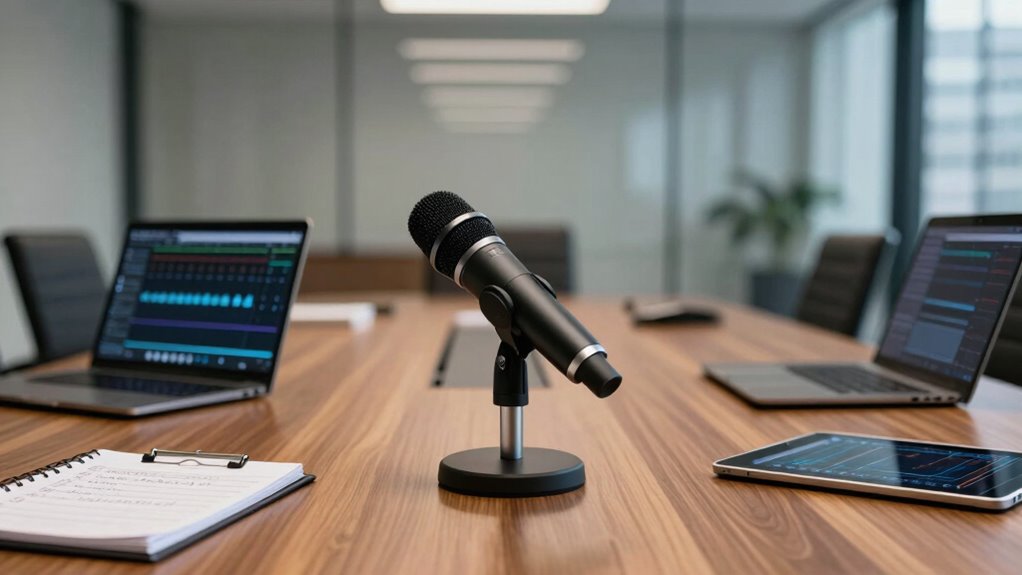
Is your audio clear enough for everyone to hear you without strain? Before the call, do thorough audio testing to ensure your microphone clarity is ideal. Use your device’s built-in testing features or a dedicated app to check how you sound. Speak naturally and listen carefully to the playback to identify any muffled or distorted audio. Adjust your microphone position if needed—keep it close but not too close to avoid popping sounds. Make sure your microphone isn’t affected by background noise or echo. Clear audio is essential for effective communication, so don’t skip this step. Taking a few moments to test and optimize your microphone clarity will ensure your message comes across loud and clear during the meeting. Additionally, understanding audio quality standards can help you achieve professional sound clarity. Maintaining proper microphone placement is also crucial for consistent audio quality. Remember that background noise reduction techniques can further improve your audio clarity in busy environments. Regularly updating your audio equipment can also help maintain optimal sound performance, especially in free floating environments where external factors may influence sound quality.
Set Up and Position Your Camera Correctly

To guarantee you look professional and appear confident during your virtual meeting, it’s essential to set up and position your camera correctly. Proper camera placement ensures you’re well-framed and visible, creating a strong visual impression. Use a framing technique that positions your eyes roughly one-third from the top of the screen, making you appear engaged and approachable. Keep the camera at eye level to avoid unflattering angles and ensure natural eye contact. Additionally, ensuring your workspace has ergonomic setup can help you maintain comfort during long calls. Optimizing your smart home environment—such as adjusting lighting or controlling background noise—can further improve your video quality. Here are some tips to achieve this:
- Place the camera at eye level on your monitor or use a stand.
- Center yourself within the frame with good headroom.
- Ensure your face is well-lit and clearly visible.
- Test the framing technique by previewing your shot before the call.
- Regularly check your video background to make sure it remains tidy and professional.
- Consider camera quality and upgrade if necessary to ensure clear video during important calls.
- Familiarize yourself with video conferencing best practices to enhance your overall presentation.
Prepare and Access Your Presentation Files

Before your presentation, make sure you can access your files easily and that they’re compatible with the room’s equipment. Check that the presentation is the latest version to avoid any mix-ups during your talk. Confirm these details ahead of time so you can focus on delivering your message confidently. Additionally, consider reviewing the ethics in technology use to ensure your presentation aligns with responsible digital practices. Being aware of media literacy can also help you evaluate the credibility of your sources and avoid spreading misinformation. To further ensure a smooth presentation, test the soundproofing of the room to minimize distractions and maintain audience engagement. Properly caring for your kitchen gear and understanding eco-friendly disposal tips can serve as useful reminders to handle technology responsibly and sustainably, especially when demonstrating eco-conscious recycling practices.
Verify File Accessibility
Ensuring your presentation files are accessible is a critical step in your conference room preparation. First, verify that your files are stored in a secure location, following digital file security best practices. Second, confirm that you can open and run your presentation without errors. Third, implement backup procedures—save copies on external drives or cloud storage to prevent data loss. Fourth, test access from the conference room computer to ensure no permissions or network issues block your files. Doing this minimizes surprises during the call and guarantees smooth delivery. Keep in mind, securing your files and having reliable backups are essential for a seamless presentation, especially in high-stakes meetings. Proper verification helps you avoid technical setbacks, letting you focus on your message. Understanding privacy policies and data management also plays a role in how your files are stored and shared securely.
Check Presentation Compatibility
Checking your presentation files for compatibility is a crucial step to prevent technical issues during your meeting. Start by opening your slides on the conference room computer to ensure the slide design displays correctly and all elements appear as intended. Verify that fonts, images, and animations work seamlessly across the software versions you’ll be using. Make sure your presentation format is compatible with the system—PowerPoint, PDF, or Google Slides—to avoid last-minute surprises. A well-checked presentation maintains smooth flow and keeps your audience engaged. If possible, save a backup copy on a USB drive or cloud service, and test it on the actual device you’ll use during the call. Additionally, reviewing air fryer accessories and their compatibility with your device can help you prepare for any unexpected technical needs. Conducting a security assessment of your files ensures they haven’t been compromised or corrupted, safeguarding your data and maintaining confidentiality. Clear, compatible files help you deliver a confident and engaging presentation without interruptions.
Confirm Latest Version
To avoid last-minute confusion, make sure you’re working with the most up-to-date version of your presentation files. Proper version control guarantees you’re using the latest updates, preventing outdated slides from slipping in. Confirm the update by checking the file date and version number before the call. This step is essential to avoid errors or omissions during your presentation.
Here are four steps to ensure you’re on track:
- Locate the master file and verify its version number.
- Save the latest version in a designated folder.
- Synchronize your device to guarantee all updates are accessible.
- Double-check that no recent edits are missing before the meeting.
Test Screen Sharing to Avoid Last-Minute Glitches
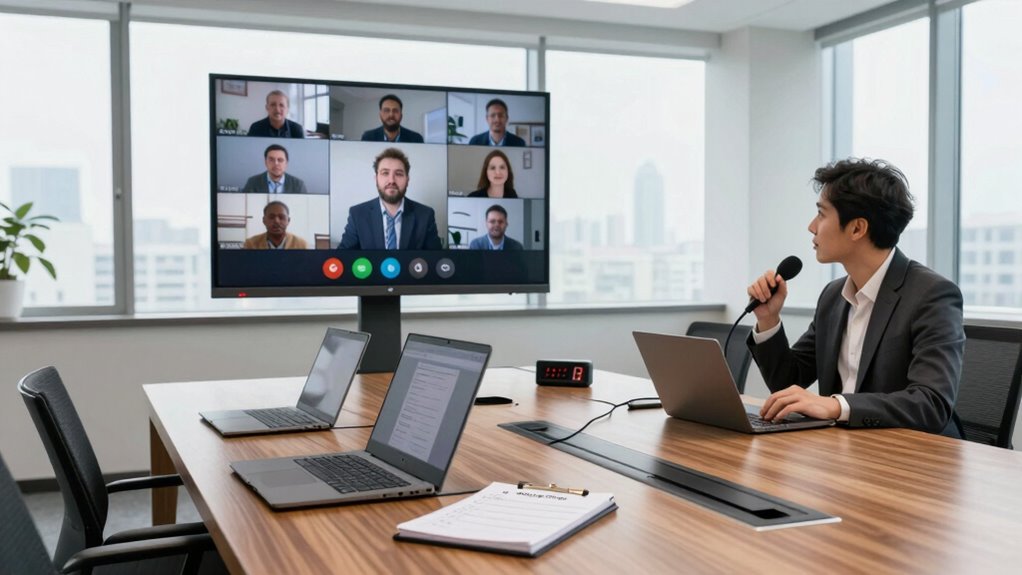
Testing your screen sharing before the meeting starts can save you from awkward delays or technical glitches. Make sure your connection stability is solid by running a quick test to avoid interruptions. Check that your screen sharing works smoothly across devices and platforms, so you’re not caught off guard.
Use this quick reference to prepare:
| Step | Action |
|---|---|
| 1 | Open your presentation or document |
| 2 | Share your screen with a colleague or test account |
| 3 | Confirm all parts display correctly |
| 4 | Verify connection stability during sharing |
| 5 | End the test and note any issues to fix |
Prepping ahead guarantees a seamless experience, so you can focus on your message rather than technical hiccups.
Adjust Lighting and Background for a Professional Look

Have you considered how your lighting and background impact the impression you make on camera? Proper lighting adjustments and a neat background setup can make you look more professional and confident. Here are four key tips:
Good lighting and a tidy background boost your on-camera professionalism and confidence.
- Ensure your face is well-lit with natural light or soft indoor lighting, avoiding harsh shadows.
- Position yourself facing the light source to prevent backlighting and improve visibility.
- Keep your background simple and clutter-free, using a plain wall or professional setting.
- Use a clean, distraction-free background that reflects a polished image.
Review Your Agenda and Key Talking Points
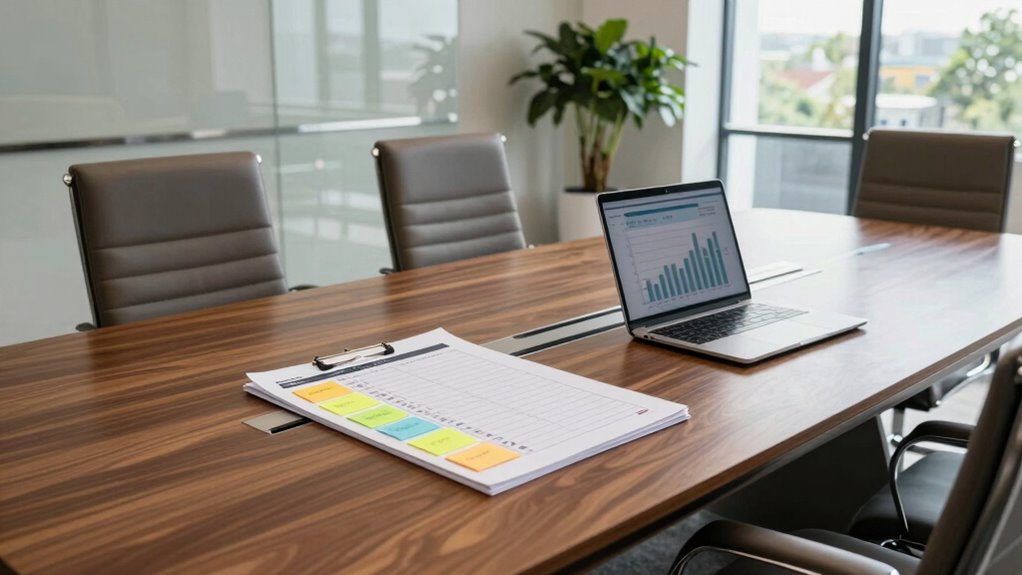
Make sure you’re familiar with your agenda overview so you can stay on track during the meeting. Confirm that your key messages align with the main objectives to guarantee clarity. This preparation helps you communicate confidently and keeps the discussion focused.
Agenda Overview
Could you clearly outline your agenda and key talking points before the meeting begins? Proper agenda planning guarantees everyone understands the meeting objectives and stays on track. To prepare effectively:
- Review your agenda to confirm it covers all necessary topics.
- Highlight key talking points for each agenda item.
- Allocate specific time slots to keep the meeting focused.
- Share the agenda with participants in advance for feedback and clarity.
This preparation helps set clear expectations, minimizes confusion, and keeps the discussion goal-oriented. Ensuring your agenda is thorough and well-organized allows the meeting to run smoothly and efficiently. Remember, a well-structured agenda is essential for achieving your meeting objectives and maintaining engagement from all attendees.
Key Message Alignment
Why is aligning your key messages with your agenda so essential? When your talking points reflect your agenda, your message clarity improves, guaranteeing everyone understands your main objectives. This alignment helps maintain visual consistency across your presentation materials, reinforcing your points and making your message more memorable. Take time to review your agenda and highlight your key talking points, ensuring they resonate with your overall goals. Avoid diverging into unrelated topics, which can weaken your message. When your key messages align with your agenda, your communication becomes more focused and persuasive. This preparation boosts your confidence and ensures your audience leaves with a clear understanding of your main points, setting the stage for a successful call.
Prepare for Troubleshooting Common Conference Call Issues

Preparing for common conference call issues guarantees your meetings run smoothly and efficiently. Anticipate problems like audio issues and connection troubles by having a clear troubleshooting plan. Here are four key steps to prepare:
Preparing for common conference call issues ensures smooth, efficient meetings with quick solutions.
- Test audio equipment—microphones, speakers, and headphones—to prevent audio issues during the call.
- Check your internet connection and run connection troubleshooting to ensure stability.
- Have backup devices ready, such as an extra headset or phone line.
- Prepare a quick guide for common problems and solutions, so you can address issues swiftly.
Do a Final Walkthrough to Confirm Everything Is Ready
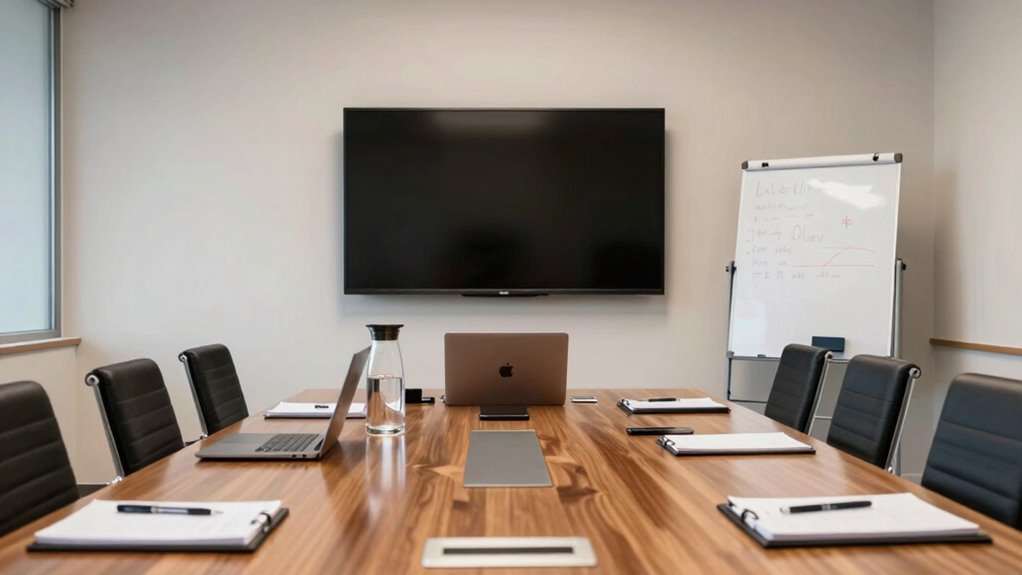
Before the meeting starts, take a final walk around the room to make certain everything is in place. You should verify that all equipment works properly, the room setup is correct, and the necessary materials are ready. This quick check helps prevent last-minute surprises and keeps the meeting running smoothly.
Verify Equipment Functionality
As you conduct the final walkthrough, it’s essential to verify that all equipment is functioning properly. Start by checking the audio calibration to guarantee sound levels are balanced and clear. Confirm speaker positioning to avoid dead spots and echo issues. Test the microphones for proper pickup and background noise. Finally, power on all devices—video conferencing systems, projectors, and laptops—to verify they connect seamlessly and display correctly.
- Confirm audio calibration for balanced sound
- Check speaker positioning for best coverage
- Test microphones for clarity and noise
- Power on devices and verify connections
Check Room Setup
Conduct a thorough walkthrough of the conference room to guarantee everything is in place and ready for use. Check the seating arrangements to ensure chairs are positioned comfortably and allow clear sightlines for all participants. Confirm that the room acoustics are ideal, with no echoes or background noise that could disrupt communication. Make sure all tables, chairs, and tech equipment are properly set up and functioning. Look for any obstructions or clutter that might interfere with movement or visibility. Verify that lighting is appropriate and that curtains or blinds are adjusted if needed. This final walkthrough helps catch any overlooked issues, ensuring the room is perfectly prepared for a smooth and professional meeting.
Confirm Materials Ready
Perform a final check to confirm all materials are in place and ready for the meeting. Confirming proper material organization prevents delays and confusion. Verify that visual aids are prepared, clear, and accessible to support your presentation. Double-check that handouts, slides, and any printed documents are ready and in order. Confirm that all equipment needed for displaying visual aids is functioning correctly. Make sure any props or supporting materials are organized and easily reachable. Ultimately, review your materials one last time to ensure nothing is missing or out of place. This final walkthrough helps you catch overlooked items and ensures everything contributes to a smooth, professional meeting. Staying organized and prepared sets the tone for a successful call.
Frequently Asked Questions
How Early Should I Arrive Before the Scheduled Conference Call?
You should arrive at least 15 minutes early for your conference call. This gives you enough time to handle any technical issues and review your notes. Punctuality tips include testing your equipment beforehand and logging into the meeting early. By arriving early, you guarantee smooth participation and avoid last-minute stress. Planning your timing considerations this way helps you stay confident and well-prepared for a successful big call.
What Backup Plans Are Recommended if Technical Issues Occur?
If technical issues arise during your call, you should have disaster recovery and contingency strategies prepared. Keep a backup internet connection, like a mobile hotspot, and guarantee alternative communication methods, such as phone dial-ins, are available. Test your backup tools beforehand and have IT support contact info handy. These steps help you quickly switch to contingency plans, minimizing disruptions and keeping your meeting on track.
How Can I Ensure My Virtual Background Looks Professional?
Imagine your virtual background is a window into your professionalism. To guarantee it looks sharp, check your virtual background setup in advance, choosing a clean, clutter-free image that aligns with your brand. Test lighting and camera angles to prevent shadows or distortions. Keep your appearance polished, and avoid distracting elements. With a polished setup, you’ll project a confident, professional appearance that commands respect and keeps the focus where it belongs—on your message.
What Should I Do if a Participant’s Audio or Video Isn’t Working?
If a participant’s audio or video isn’t functioning, you should quickly suggest audio troubleshooting steps like checking their microphone and speaker connections or switching to a different device. For video issues, recommend reconfiguring their video settings or restarting their camera app. Encourage them to test their equipment beforehand, and offer to walk them through any adjustments needed to guarantee smooth communication during the call.
Are There Specific Security Measures to Protect Confidential Information During the Call?
Your confidential info is under attack—don’t take chances! You must implement robust security measures like encryption protocols to scramble sensitive data and prevent unauthorized access. Additionally, set strict access controls, ensuring only authorized participants can join. These steps are your digital fortress, protecting your secrets from prying eyes. Without them, you risk exposing everything—so act decisively and safeguard your information before the call even begins.
Conclusion
Think of your conference room setup like tuning a musical instrument before a performance. When everything’s in harmony, your call flows smoothly, and you shine. Take those final 10 minutes to check each element—like tuning strings—so nothing surprises you. A quick double-check can turn a potential discord into a symphony of professionalism. When you’re prepared, your message hits all the right notes, leaving a lasting impression on your audience.